
Most shops and takeaways
Counter kit
from WST 2,450
- Tablet, 10 inches or larger
- Counter stand
- 80 mm receipt printer
- Cash drawer
- Barcode scanner
Preview site for review. Some features are still in testing.
Hardware and setup
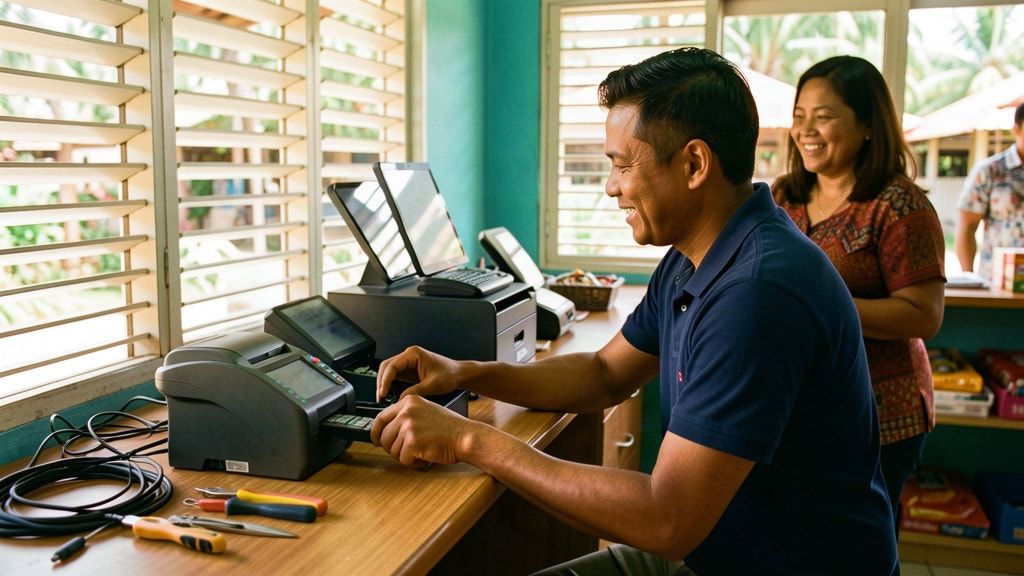
Connect POS works in a web browser, so you can start on a tablet or computer you already own. Add a receipt printer, cash drawer or scanner when you are ready. We set it up with you and stay a phone call away.
What you need
You need two things: a device to run Connect POS and an internet connection. Everything else is up to you.
Connect POS runs in an up-to-date web browser. At the counter we suggest a tablet of 10 inches or larger on a stand.
Choose 80 mm thermal receipts, A4 paper, or no printer. Every receipt can also be saved as a PDF.
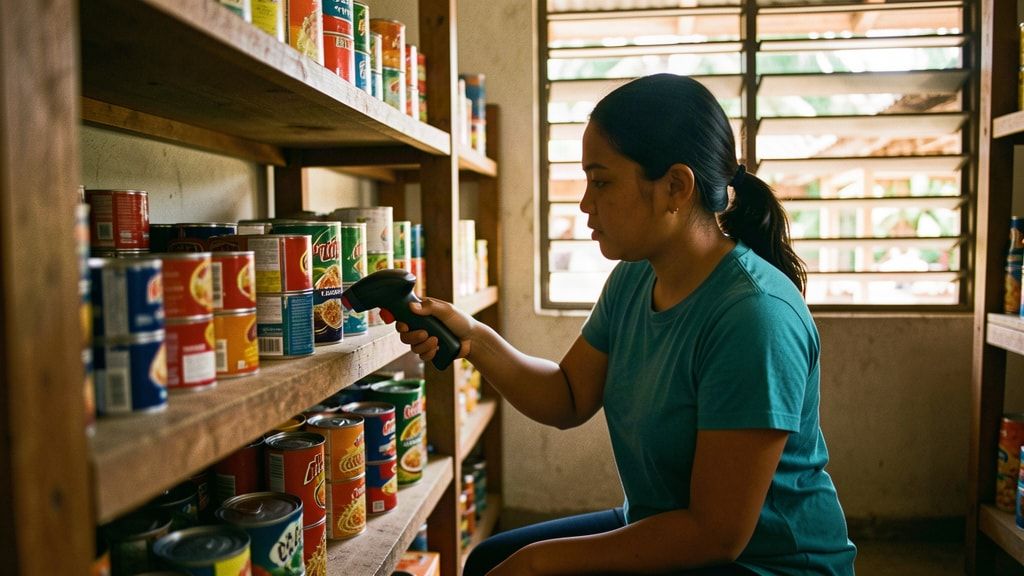
Connect POS reads a scanned barcode the way it reads typing, which is how most USB and Bluetooth scanners send it. Ask us before you buy one.
Optional. Choose a manual drawer or one connected to your printer. Ask us which suits your setup.
A second tablet or screen in the kitchen shows the order queue. Kitchen printers are not supported yet.
A steady connection: shop Wi-Fi, fibre, or a mobile data hotspot. The till pauses if the connection drops and carries on when it returns, so keep a hotspot as a backup.
We are building a list of printers, scanners and drawers we have checked with Connect POS. Ask us before you buy, and we will tell you what we know.
Counter kits
If you would rather not shop around, we can quote a kit. Kit prices are for the equipment only; on-site setup and staff training is WST 350 extra in the Apia area. Prices are indicative until we confirm supplier quotes, and include VAGST. We will tell you which models we have checked with Connect POS.
Most shops and takeaways
from WST 2,450
Shops that already have a device
WST 0
Cafés and restaurants
from WST 850
Getting started
Tell us what you sell and how you work now. We show you Connect POS with your own products.
Use what you have, or we quote a counter kit. You only buy what your counter needs.
The guided setup takes you through shop details, products, till buttons, staff and your opening float. We can do it with you over the phone, or at your shop.
Run the equipment checklist for your printer, scanner, drawer and kitchen screen. Then let staff practise a full shop day on a copy of your till.
Start selling. If anything is unclear in the first weeks, call us and we will sort it out.
Phone or video help with setupFree
On-site setup and staff training, Apia areaWST 350
Other areas, including SavaiʻiQuoted
Prices include VAGST.
Talofa lava
We will tell you what you can keep, what you might need, and what it would cost. Call +685 27313 or book a free demo.
Rather talk to a person? Call Connect IT in Samoa.
+685 27313+685 27333Or email sales@connectitsamoa.com, or message Connect IT Samoa on Facebook.